> ## Documentation Index
> Fetch the complete documentation index at: https://turnkey-0e7c1f5b-onramp-quick-fix.mintlify.site/llms.txt
> Use this file to discover all available pages before exploring further.

# Embedded Wallets Quickstart

> Turnkey's Embedded Wallets enable you to integrate secure, custom wallet experiences directly into your product. With features like advanced security, seamless authentication, and flexible UX options, you can focus on building great products while we handle the complexities of private key management.

## Prerequisites

This guide assumes you've completed the steps to create an account, organization, and API keypair as described in the [Account Setup](/getting-started/quickstart) section.

## Installation

Create a new Next.js app via `npx create-next-app@latest`. Or install into an existing project.

<CodeGroup>
  ```bash npm
  npm install @turnkey/sdk-react
  ```

  ```bash pnpm
  pnpm add @turnkey/sdk-react
  ```

  ```bash yarn
  yarn add @turnkey/sdk-react
  ```
</CodeGroup>

<Info>
  **Technical Requirements**

  **Next.js App Router Required**

  `@turnkey/sdk-react` requires the Next.js App Router architecture as it leverages React Server Components and Server Actions to handle authentication on your behalf. The SDK automatically manages the "use client" and "use server" directives. The Pages Router is not supported.

  **React 19 Users**

  If you're using Next.js 15 with React 19 you may encounter an installation error with `@turnkey/sdk-react`. Consider:

  * Downgrading React to `18.x.x`
  * Using `npm install --force` or `--legacy-peer-deps`

  You may learn more about this [here](https://ui.shadcn.com/docs/react-19).
</Info>

## Setup

<Steps>
  <Step title="Environment">
    The following environment variables are necessary to use the Turnkey SDK.

    ```bash .env
    NEXT_PUBLIC_ORGANIZATION_ID=<your turnkey org id>
    TURNKEY_API_PUBLIC_KEY=<your api public key>
    TURNKEY_API_PRIVATE_KEY=<your api private key>
    NEXT_PUBLIC_BASE_URL=https://api.turnkey.com
    ```

    <Info>
      **Note**: These environment variable names must be used exactly as shown.
      The SDK depends on them internally for server actions and authentication.
    </Info>
  </Step>

  <Step title="Configure">
    Fill in with your Organization ID and API Base URL.

    ```tsx src/app/layout.tsx
    const config = {
      apiBaseUrl: "https://api.turnkey.com",
      defaultOrganizationId: process.env.NEXT_PUBLIC_ORGANIZATION_ID,
    };
    ```
  </Step>

  <Step title="Provider">
    Wrap your layout with the `TurnkeyProvider` component, and import styles from sdk-react.

    ```tsx src/app/layout.tsx
    import "./globals.css";
    import { TurnkeyProvider } from "@turnkey/sdk-react";
    import "@turnkey/sdk-react/styles"; // required to render auth component styles properly

    const config = {
      apiBaseUrl: "https://api.turnkey.com",
      defaultOrganizationId: process.env.NEXT_PUBLIC_ORGANIZATION_ID!,
    };

    export default function RootLayout({ children }: { children: React.ReactNode }) {
      return (
        <html lang="en">
          <body>
            <TurnkeyProvider config={config}>
            {children}
            </TurnkeyProvider>
          </body>
        </html>
      );
    }
    ```

    <Info>
      **React 19 Users**

      `@turnkey/sdk-react` is built with React 18. If you're using React 19 you'll find a type mismatch on the children type.

      To fix this, you can use the `@ts-ignore` directive to suppress the error.

      src/app/layout.tsx

      ```
      <TurnkeyProvider config={config}>  {/* @ts-ignore */}  {children}</TurnkeyProvider>
      ```

      We're actively working towards React 19 compatibility.
    </Info>
  </Step>
</Steps>

## Authenticate

<Frame>
  <img src="https://mintlify.s3.us-west-1.amazonaws.com/turnkey-0e7c1f5b-onramp-quick-fix/images/getting-started/img/quickstart/auth-component.png" alt="Auth Component" />
</Frame>

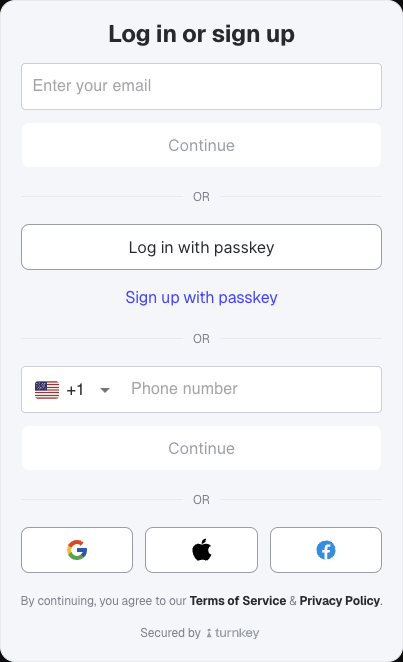
The auth component contains the UI and logic to handle the authentication flow.

<Steps>
  <Step title="Configure">
    For simplicity, this app will only support email authentication. We have other guides on additional authentication methods. Additionally, you can customize the order in which the auth methods are displayed.

    ```tsx src/app/page.tsx
    "use client";

    export default function Home() {
      // The auth methods to display in the UI
      const config = {
        authConfig: {
          emailEnabled: true,
          // Set the rest to false to disable them
          passkeyEnabled: false,
          phoneEnabled: false,
          appleEnabled: false,
          facebookEnabled: false,
          googleEnabled: false,
          walletEnabled: false,
        },
        // The order of the auth methods to display in the UI
        configOrder: ["email" /* "passkey", "phone", "socials" */],
      };

      return <div></div>;
    }
    ```

    <Accordion title="Auth Config Options">
      ```
      type AuthConfig = {
        emailEnabled: boolean;
        passkeyEnabled: boolean;
        phoneEnabled: boolean;
        appleEnabled: boolean;
        googleEnabled: boolean;
        facebookEnabled: boolean;
        walletEnabled: boolean;
      };
      ```
    </Accordion>
  </Step>

  <Step title="Import">
    Import the auth component into your app and pass in the config object.

    ```tsx src/app/page.tsx
    "use client";

    import { Auth } from "@turnkey/sdk-react";

    export default function Home() {
      const config = {
        authConfig: {
          emailEnabled: true,
          passkeyEnabled: false,
          phoneEnabled: false,
          appleEnabled: false,
          facebookEnabled: false,
          googleEnabled: false,
          walletEnabled: false,
        },
        configOrder: ["email"],
      };

      return (
        <div>
          <Auth {...config} />
        </div>
      );
    }
    ```
  </Step>

  <Step title="Handlers">
    Define two functions to handle the "success" and "error" states. Initially, the `onError` function will set an `errorMessage` state variable which will be used to display an error message to the user. The `onAuthSuccess` function will route the user to the dashboard after successful authentication.

    A new [sub-organization](/concepts/sub-organizations) and [wallet](/concepts/wallets) is created for each new user during the authentication flow.

    ```tsx src/app/page.tsx
    "use client";

    import { useState } from "react";
    import { Auth } from "@turnkey/sdk-react";

    export default function Home() {
      const [errorMessage, setErrorMessage] = useState("");
      const router = useRouter();

      const onAuthSuccess = async () => {
        // We'll add the dashboard route in the next step
        router.push("/dashboard");
      };

      const onError = (errorMessage: string) => {
        setErrorMessage(errorMessage);
      };

      // Add the handlers to the config object
      const config = {
        // ...
        onAuthSuccess: onAuthSuccess,
        onError: onError,
      };

      return (
        <div>
          <Auth {...config} />
        </div>
      );
    }
    ```
  </Step>

  <Step title="Dashboard: User Session">
    Add a dashboard route to the app where the user will be able to view their account and sign messages.

    ```tsx src/app/dashboard/page.tsx
    export default function Dashboard() {
      return <div>Dashboard</div>;
    }
    ```

    Since the app is wrapped with the `TurnkeyProvider` component, the `useTurnkey` hook is available to all child components. Calling `turnkey.getSession()` will return the current user's session information from local storage.

    Add a state variable to store the user:

    ```tsx src/app/dashboard/page.tsx
    import { useState, useEffect } from "react";
    import { useTurnkey } from "@turnkey/sdk-react";
    import { Session } from "@turnkey/sdk-types";

    export default function Dashboard() {
      const { turnkey } = useTurnkey();
      const [session, setSession] = useState<Session | null>(null);

      useEffect(() => {
        if (turnkey) {
    			turnkey.getSession().then((session) => {
    				setSession(session ?? null);
    			});
        }
      }, [turnkey]);

      return <div>Dashboard</div>;
    }
    ```

    #### User Session

    ```ts
    export type Session = {
      sessionType: SessionType;
      userId: string;
      organizationId: string;
      expiry: number; // Unix timestamp representing the expiry of the session set by the server
      token: string;  // publicKey used to verify stamped requests (lives in IndexedDB); can temporarily be a read bearer token
    };
    ```
  </Step>
</Steps>

## Sign Message

Turnkey supports signing arbitrary messages with the [`signRawPayload`](/api-reference/signing/sign-raw-payload) method.

The `signRawPayload` method requires these parameters:

* `payload`: The raw unsigned payload to sign
* `signWith`: The signing address (wallet account, private key address, or private key ID)
* `encoding`: The message encoding format
* `hashFunction`: The selected hash algorithm

<Steps>
  <Step title="The Payload">
    For simplicity, a human readable string, `message`, will be the payload to sign. Add a state variable to store the message and an input field to allow the user to enter the message:

    ```tsx src/app/dashboard/page.tsx
    import { useState, useEffect } from "react";

    export default function Dashboard() {
    //...

    const [message, setMessage] = useState("");

    //...

    return (
      <input
        type="text"
        value={message}
        onChange={(e) => setMessage(e.target.value)}
        placeholder="Enter message to sign"
        className="w-full px-4 py-2 border border-gray-300 rounded-lg focus:outline-none focus:ring-2 focus:ring-indigo-500"
      />
    );
    }
    ```
  </Step>

  <Step title="The Signer">
    Signing messages requires a signer e.g. a Turnkey wallet address to sign with and a payload or message to sign. A new wallet is created for each user during the authentication flow.

    Create a function called `getSignWith`, to get the user's wallet account address which will be used to sign the message.

    Use the `getSession` method from the `useTurnkey` hook to get the user's read-write session:

    ```tsx src/app/dashboard/page.tsx
    import { useState, useEffect } from "react";
    import { useTurnkey } from "@turnkey/sdk-react";
    import { Session } from "@turnkey/sdk-types";

    export default function Dashboard() {
      const { turnkey, indexedDbClient } = useTurnkey();
      const [session, setSession] = useState<Session | null>(null);

      const client = indexedDbClient;

      if (session) {
          // The user's sub-organization id
          const organizationId = session?.organizationId;

          // Get the user's wallets
          const wallets = await client?.getWallets({
            organizationId,
          });

          // Get the first wallet of the user
          const walletId = wallets?.wallets[0].walletId ?? '';

          // Use the `walletId` to get the accounts associated with the wallet
          const accounts = await client?.getWalletAccounts({
            organizationId,
            walletId,
          });

          // find an Ethereum account
          const matchingAccount = accounts?.accounts.find(
            (account) => account.addressFormat === 'ADDRESS_FORMAT_ETHEREUM'
          );

          const signWith = matchingAccount?.address ?? '';

          console.log('signWith:', signWith);

          return signWith;
          
        } else {
          // log out and clear session
        }

      useEffect(/* ... */*/);

      return (/* <div>...</div> */*/);
    }
    ```
  </Step>

  <Step title="The Signing Function">
    Create a function called `signMessage`. This function will:

    * Get the user's wallet account for signing the message
    * Compute the keccak256 hash of the message
    * Call the `signRawPayload` method

    Note: To compute the `keccak256` hash of the message, this example uses the `hashMessage` function from `viem`. However, any other hashing library can be used.

    ```tsx
    const signMessage = async () => {
        try {
          const payload = hashMessage(message);
          const signWith = await getSignWith();
          if (!signWith) {
            throw new Error('Missing signWith value');
          }

          const signature = await client?.signRawPayload({
            payload,
            signWith,
            // The message encoding format
            encoding: 'PAYLOAD_ENCODING_TEXT_UTF8',
            // The hash function used to hash the message
            hashFunction: 'HASH_FUNCTION_KECCAK256',
          });

          if (signature?.r && signature?.s && signature?.v) {
            const fullSignature = `0x${signature.v}${signature.r}${signature.s}`;
            setSignature(fullSignature);
          } else {
            setSignature(null);
            console.warn('Incomplete signature components');
          }
        } catch (err) {
          console.error('Signing failed:', err);
          setSignature('Error signing message');
        }
      };
    ```
  </Step>

  <Step title="Display">
    Add a button to the UI to trigger the `signMessage` function.

    ```tsx src/app/dashboard/page.tsx
    import { useState, useEffect } from "react";
    import { useTurnkey } from "@turnkey/sdk-react";
    import { hashMessage } from "viem";

    export default function Dashboard() {
      //...

      const [message, setMessage] = useState("");

      const signMessage = async () => {
        try {
          const payload = hashMessage(message);
          const signWith = await getSignWith();
          if (!signWith) {
            throw new Error('Missing signWith value');
          }

          const signature = await client?.signRawPayload({
            payload,
            signWith,
            // The message encoding format
            encoding: 'PAYLOAD_ENCODING_TEXT_UTF8',
            // The hash function used to hash the message
            hashFunction: 'HASH_FUNCTION_KECCAK256',
          });

          if (signature?.r && signature?.s && signature?.v) {
            const fullSignature = `0x${signature.v}${signature.r}${signature.s}`;
            setSignature(fullSignature);
          } else {
            setSignature(null);
            console.warn('Incomplete signature components');
          }
        } catch (err) {
          console.error('Signing failed:', err);
          setSignature('Error signing message');
        }
      };

      return (
        <div className="max-w-2xl mx-auto mt-20 p-8 bg-white rounded-xl shadow-lg space-y-6">
            <h2 className="text-2xl font-bold text-gray-800">Sign a Message</h2>

            <input
              type="text"
              value={message}
              onChange={(e) => setMessage(e.target.value)}
              placeholder="Enter message to sign"
              className="w-full px-4 py-2 border border-gray-300 rounded-lg focus:outline-none focus:ring-2 focus:ring-indigo-500"
            />

            <button
              onClick={signMessage}
              className="w-full bg-gray-600 hover:bg-gray-700 text-white font-semibold py-2 px-4 rounded-lg transition-colors"
            >
              Sign Message
            </button>

            {signature && (
              <div className="bg-gray-100 p-4 rounded-lg border border-gray-300">
                <h3 className="text-lg font-medium text-gray-700 mb-2">
                  Signature
                </h3>
                <code className="block text-sm text-gray-800 break-words">
                  {signature}
                </code>
              </div>
            )}
          </div>
      );
    }
    ```
  </Step>

  <Step title="Handle logout">
    Add a logout button that triggers `handleLogout` and clears the indexedDb stored key and session.

    ```tsx src/app/dashboard/page.tsx
    import { useState, useEffect } from "react";
    import { useTurnkey } from "@turnkey/sdk-react";
    import { hashMessage } from "viem";

    export default function Dashboard() {
      //...

       const handleLogout = async () => {
        try {
          turnkey?.logout();
          indexedDbClient?.clear();
          setSession(null);
          setSignature(null);
          setMessage('');
        
          router.push('/'); // Redirect to the first page
          window.location.href = "/";
        
        } catch (err) {
          console.error('Logout failed:', err);
        }
      };

      //...

      return (
        //...
         {/* Logout Button */}
          <button
            onClick={handleLogout}
            className="absolute top-6 right-6 bg-red-500 hover:bg-red-600 text-white font-semibold py-2 px-4 rounded-lg shadow transition-all"
          >
            Logout
          </button>
        //...
      );
    }
    ```
  </Step>
</Steps>

## Recap

In this quickstart guide, you've learned how to:

1. Set up Turnkey's SDK in a Next.js application
2. Configure authentication with email sign-in
3. Create a protected dashboard route
4. Implement message signing functionality using a user's Turnkey wallet
5. Handle user sessions and wallet interactions

<Accordion title="Complete Code">
  ```tsx src/app/page.tsx
  "use client";

  import { useState } from "react";
  import { Auth } from "@turnkey/sdk-react";
  import { useRouter } from "next/navigation";

  export default function Home() {
    const [errorMessage, setErrorMessage] = useState("");
    const router = useRouter();

    const onAuthSuccess = async () => {
      router.push("/dashboard");
    };

    const onError = (errorMessage: string) => {
      setErrorMessage(errorMessage);
    };

    const config = {
      authConfig: {
        emailEnabled: true,
        passkeyEnabled: false,
        phoneEnabled: false,
        appleEnabled: false,
        facebookEnabled: false,
        googleEnabled: false,
        walletEnabled: false,
      },
      configOrder: ["email"],
      onAuthSuccess,
      onError,
    };

    return (
      <div>
        <Auth {...config} />
      </div>
    );
  }
  ```

  ```tsx src/app/dashboard/page.tsx
  'use client';

  import { useState, useEffect } from 'react';
  import { useTurnkey } from '@turnkey/sdk-react';
  import { hashMessage } from 'viem';
  import { useRouter } from 'next/navigation';
  import { Session } from "@turnkey/sdk-types";

  export default function Dashboard() {
    const { turnkey, indexedDbClient } = useTurnkey();
    const [session, setSession] = useState<Session | null>(null);
    const [message, setMessage] = useState('');
    const [signature, setSignature] = useState<string | null>(null);

    const client = indexedDbClient;
    const router = useRouter();

    const handleLogout = async () => {
      try {
        turnkey?.logout();
        indexedDbClient?.clear();
        setSession(null);
        setSignature(null);
        setMessage('');
      
        router.push('/'); // Redirect to the first page
        window.location.href = "/";
      
      } catch (err) {
        console.error('Logout failed:', err);
      }
    };

    const getSignWith = async () => {
      const session = await turnkey?.getSession();

      if (session) {
        // The user's sub-organization id
        const organizationId = session?.organizationId;

        // Get the user's wallets
        const wallets = await client?.getWallets({
          organizationId,
        });

        // Get the first wallet of the user
        const walletId = wallets?.wallets[0].walletId ?? '';

        // Use the `walletId` to get the accounts associated with the wallet
        const accounts = await client?.getWalletAccounts({
          organizationId,
          walletId,
        });

        // find an Ethereum account
        const matchingAccount = accounts?.accounts.find(
          (account) => account.addressFormat === 'ADDRESS_FORMAT_ETHEREUM'
        );

        const signWith = matchingAccount?.address ?? '';

        console.log('signWith:', signWith);

        return signWith;
      } else {
        await handleLogout();
      }
    };

    const signMessage = async () => {
      try {
        const payload = hashMessage(message);
        const signWith = await getSignWith();
        if (!signWith) {
          throw new Error('Missing signWith value');
        }

        const signature = await client?.signRawPayload({
          payload,
          signWith,
          // The message encoding format
          encoding: 'PAYLOAD_ENCODING_TEXT_UTF8',
          // The hash function used to hash the message
          hashFunction: 'HASH_FUNCTION_KECCAK256',
        });

        if (signature?.r && signature?.s && signature?.v) {
          const fullSignature = `0x${signature.v}${signature.r}${signature.s}`;
          setSignature(fullSignature);
        } else {
          setSignature(null);
          console.warn('Incomplete signature components');
        }
      } catch (err) {
        console.error('Signing failed:', err);
        setSignature('Error signing message');
      }
    };

    useEffect(() => {
      if (turnkey) {
  			turnkey.getSession().then((session) => {
  				setSession(session ?? null);
  			});
      }
    }, [turnkey]);

    return (
      <div className="min-h-screen bg-gray-50 p-6 relative">
        {/* Logout Button */}
        <button
          onClick={handleLogout}
          className="absolute top-6 right-6 bg-red-500 hover:bg-red-600 text-white font-semibold py-2 px-4 rounded-lg shadow transition-all"
        >
          Logout
        </button>

        {/* Content */}
        <div className="max-w-2xl mx-auto mt-20 p-8 bg-white rounded-xl shadow-lg space-y-6">
          <h2 className="text-2xl font-bold text-gray-800">Sign a Message</h2>

          <input
            type="text"
            value={message}
            onChange={(e) => setMessage(e.target.value)}
            placeholder="Enter message to sign"
            className="w-full px-4 py-2 border border-gray-300 rounded-lg focus:outline-none focus:ring-2 focus:ring-indigo-500"
          />

          <button
            onClick={signMessage}
            className="w-full bg-gray-600 hover:bg-gray-700 text-white font-semibold py-2 px-4 rounded-lg transition-colors"
          >
            Sign Message
          </button>

          {signature && (
            <div className="bg-gray-100 p-4 rounded-lg border border-gray-300">
              <h3 className="text-lg font-medium text-gray-700 mb-2">
                Signature
              </h3>
              <code className="block text-sm text-gray-800 break-words">
                {signature}
              </code>
            </div>
          )}
        </div>
      </div>
    );
  }
  ```
</Accordion>

## Next Steps

Learn more about integrating Embedded Wallets and our powerful features [here](/embedded-wallets/overview).
